User Login Enhancements
User Login Enhancements
Login is the process by which a user gains access to a system, application, or service by verifying their identity---typically using a username and password. It serves as a gateway to personalized content, secure data, and user-specific features. Modern login systems often include additional layers of security such as device recognition, network checks, and multi-factor authentication to ensure that access is granted only to authorized users.
The recent login enhancements aim to make this process both more secure and user-friendly. By capturing user agent details, recognizing trusted devices and networks, and introducing OTP verification for unfamiliar access attempts, the system ensures robust protection against unauthorized logins. At the same time, users gain more control with features like session visibility and the ability to revoke active sessions, all while maintaining a seamless experience for trusted logins.
NOTE: Whenever you attempt to log in to DGT from a new browser or adifferent IP address, you will receive an email notification containing a verification code.
1. Login Attempt from a New Device or Browser with MFA Disabled
If you (the original account holder) or anyone else tries to log in to your account using the same credentials from a different IP address or browser, the system will trigger a security alert to protect your account.
- Email Notification
You will receive an email with the subject: "Login activity from new device."
This email will include the following details: Device Name, Login Date & Time, Location of Device, and IP Address.
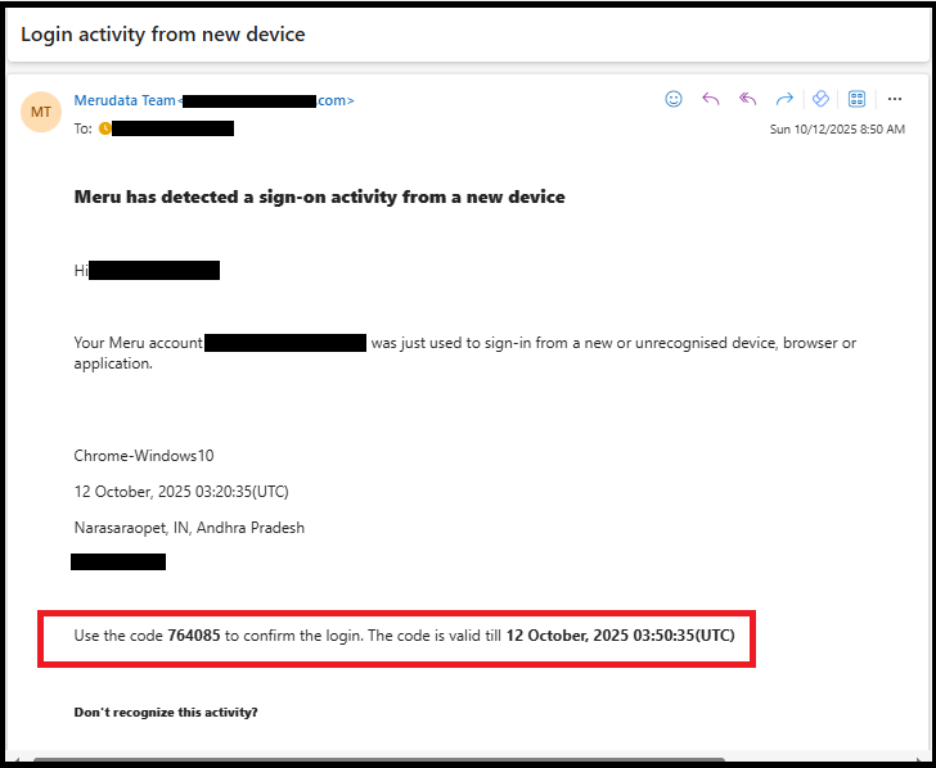
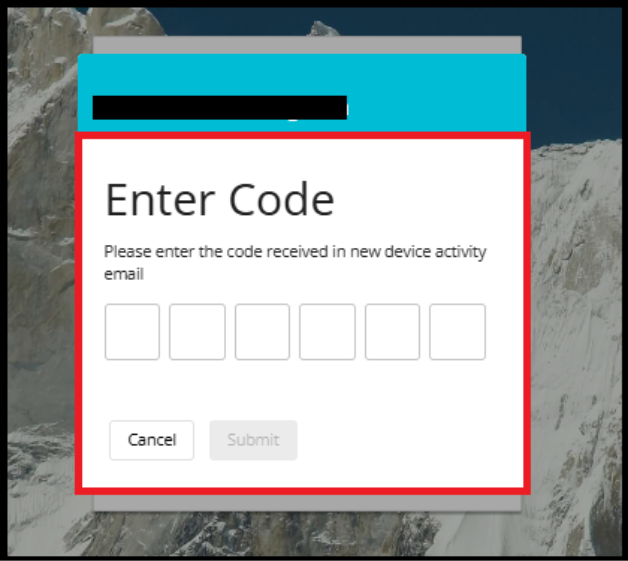
- The email will also contain a one-time verification code to confirm the login.
- You must enter this code to confirm and complete the login.
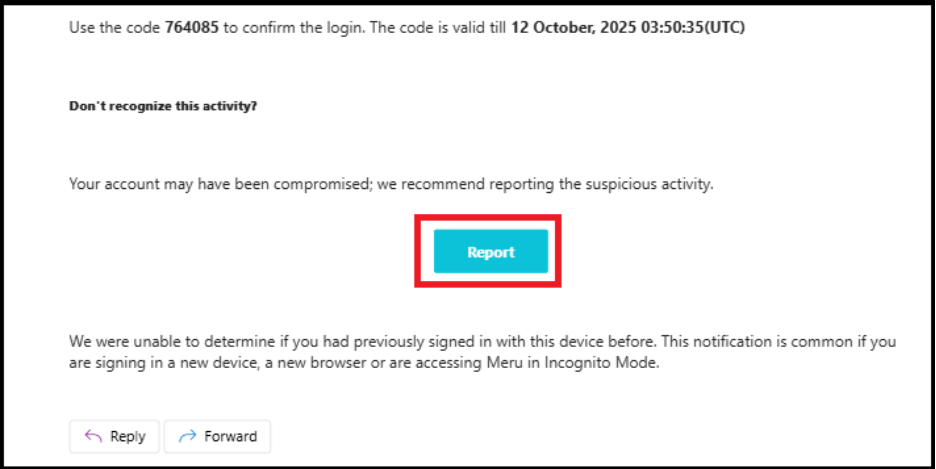
If you didn't initiate the login or don't recognize the device:
- Click the "Report" button in the email.
- This will alert the system and help secure your account from unauthorized access.
2. Login Attempt from a New Device or Browser with MFA Enabled
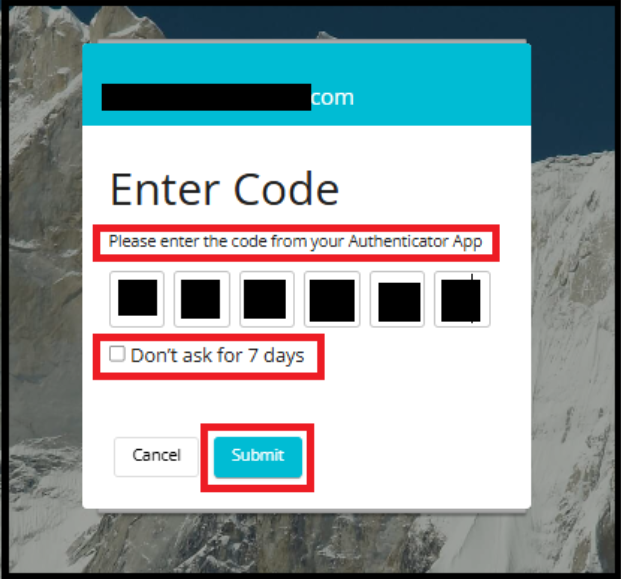
Enter the OTP (One-Time Password) generated by your Authenticator App (e.g., Google Authenticator).
(Optional) Check "Don't ask for 7 days" if you trust the device.
Click Submit to finish login.
A notification email will still be sent to alert you of the login attempt.
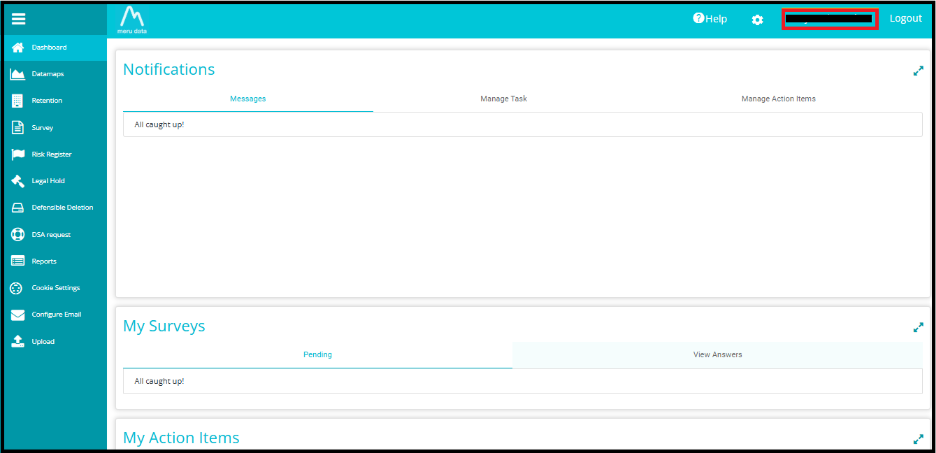
Click on Your Profile Name
After logging in, locate your profile name at the top-right corner of the DGT homepage.
Click on it to open the profile menu.
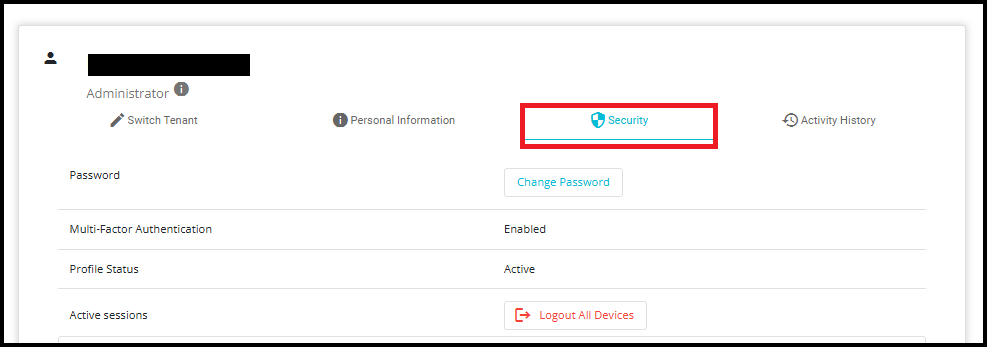
Navigate to the Security Tab
In the profile menu, select the "Security" tab.
This section allows you to manage your account's security settings.
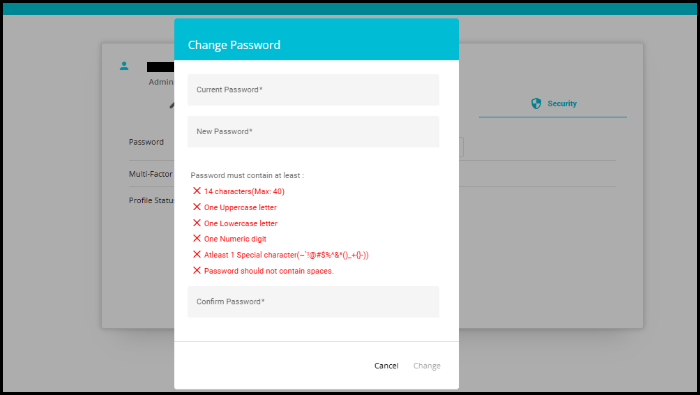
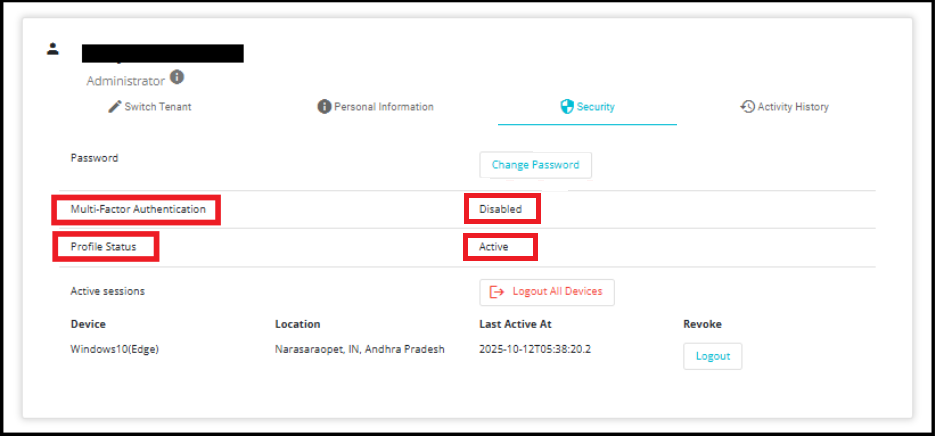
In the Security section, you will find the following fields:
- Change Password allows you to update your current password.
Multifactor Authentication (MFA) shows whether MFA is enabled or disabled.
Profile Status displays whether your profile is Active or Inactive.
View Login Devices in Security Tab
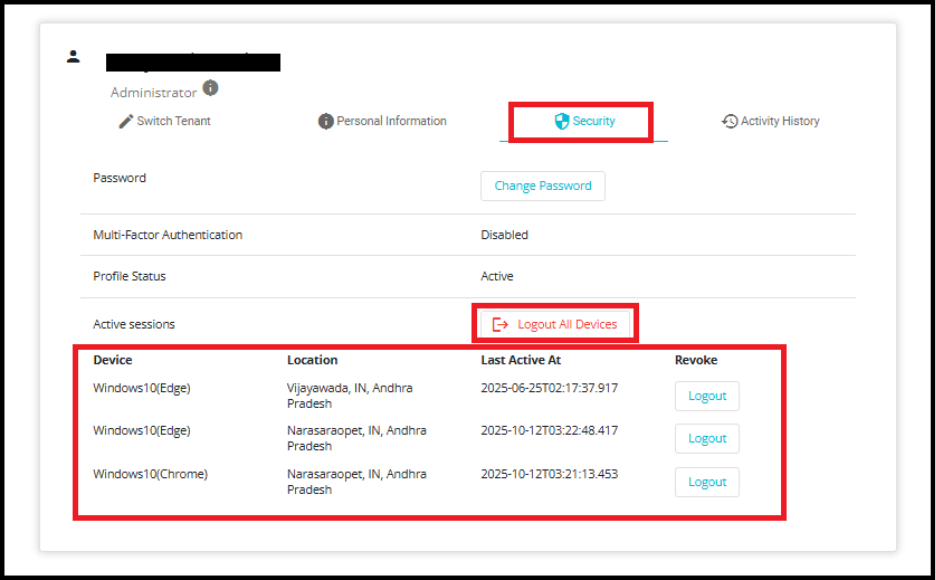
You can see the details of all login devices in the Security tab of your profile.
1. Device
- Shows the browser and operating system used during the login.
- Example: Windows 10(Edge)
- Helps identify the type of device and environment used for access.
2. Location of device
- Indicates the geographical location (city, country, state) from where the login was made. This location is typically based on the nearest data center or IP geolocation.
- Example: Vijayawada, IN, Andhra Pradesh
- Helps detect logins from unexpected or unauthorized locations.
3. Last Active At
- Displays the exact date and time when the login occurred.
- Example: 2025-08-2ST02:18:37.914
- Useful for tracking recent or suspicious login attempts.
4. Revoke
- Each device entry includes a "Logout" button.
- Clicking this will immediately log out that device from your account, enhancing control and security.
5. Logout All Devices
- The "Logout All Devices" feature is a security control that allows a user to sign out from all currently active sessions across all devices where their account is logged in.
- Ensures that no device remains logged in with the user's credentials.
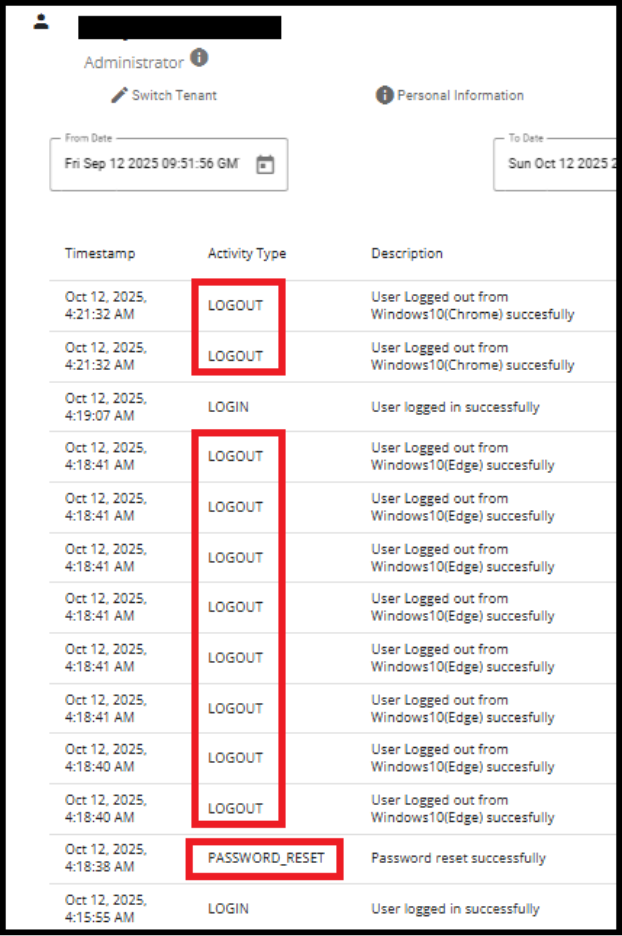
Password Reset & Automatic Logout
When a user resets their password:
All active sessions across devices are invalidated.
Each device that was logged in using the old password will be logged out automatically.
Users on those devices will see a "Session expired" message
To regain access, users must log in again using the new password.